Participation
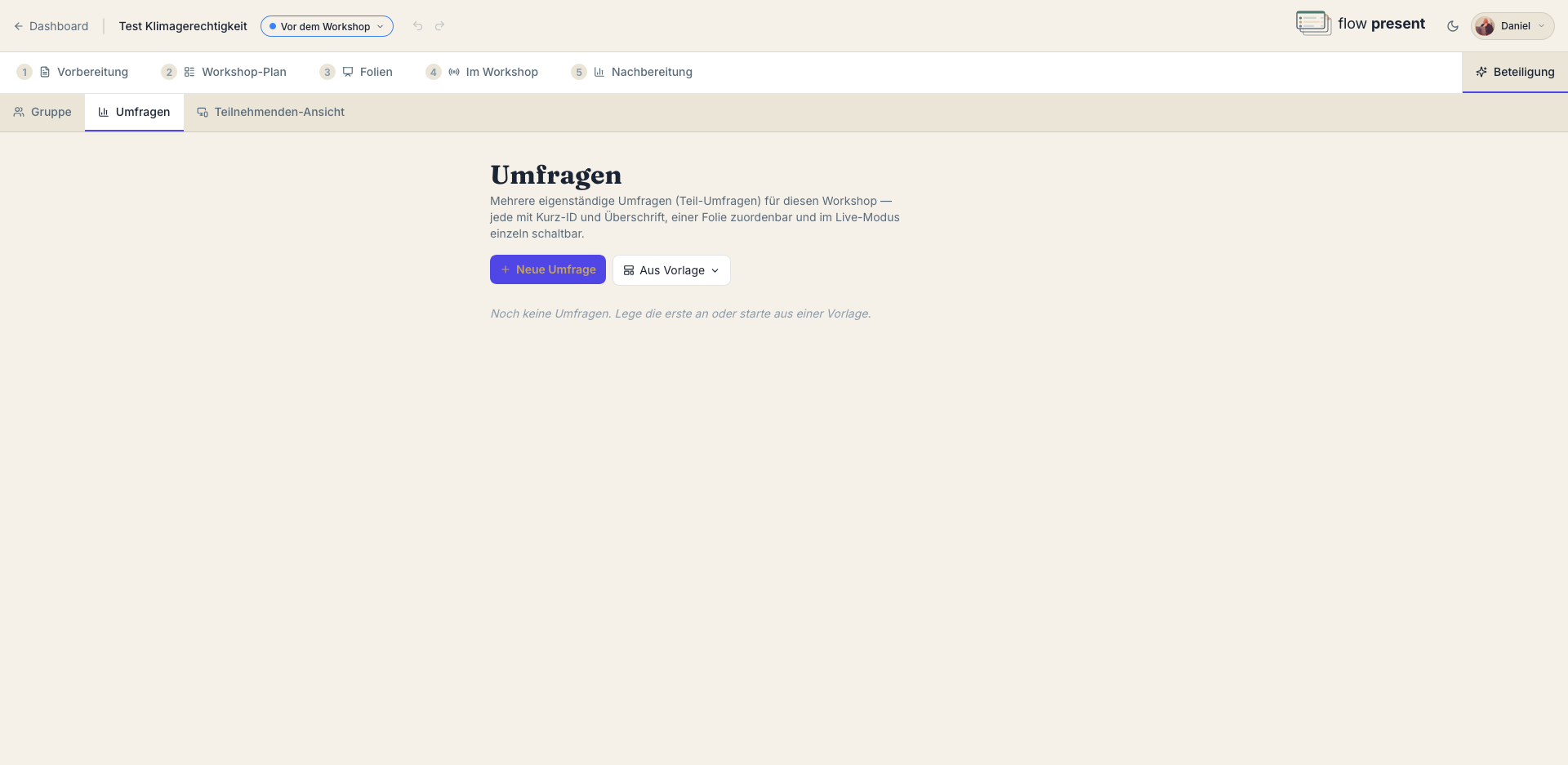
The Participation tab brings together everything your participants contribute and get to see. It has three sub-tabs: Group, Polls, and Participant view. Unlike the numbered phases, Participation is a running tab you can open at any time.
The Group sub-tab manages the participant list and the group setup.
- Expected participants: a number (e.g. 30) as the basis for breakout planning and the server capacity of your live view (your plan limit is shown).
- Participants: enter names — one per line, separated by comma or semicolon, or upload a .txt/.csv file (from tables, the first column counts). Deliberately names only, no other data.
- Groups: “Add group” (name, room/location, members via drag and drop), “Distribute randomly,” or “Clear all assignments.”
- Group phases: save several draws in advance (“Another draw”) and show them in Live mode from a dropdown.
From this list you can run a random draw in Live mode: small groups or a single person (e.g. a speaker or for taking minutes) — with applause deciding, if you like.
The Polls sub-tab creates standalone polls for this workshop. Each poll has a heading and a short ID (for referencing it in slides and in Live mode), can optionally be assigned to a slide, and can be toggled individually in Live mode.
Four question types — each with a question and an activation setting (“Automatically with the slide” or “Via a button in the Live view”):
- Multiple choice — add answer options, optionally “Allow multiple selection.”
- Word cloud — with “Words per person.”
- Scale — a range (e.g. 1–5) with labels (e.g. “not at all” / “very much”).
- Free text — an open-ended answer.
With “From template” you can start from prepared sets. Feedback questions carry a “Feedback” badge; their results appear after the workshop under Follow-up.
Participant view
Section titled “Participant view”The Participant view sub-tab designs the public page participants open on their own devices — before, during, and after the workshop.
- Access: set the short join address (
flowpresent.org/your-org/short-name, also available as anflpr.stshort URL to copy). - Welcome text per phase: one text each for “Before,” “During,” and “After the workshop,” shown above the slides.
- Module matrix: toggle per phase what participants see — slides, the current agenda item, live translation, the shared document, file areas (team and participants), and polls.
- Preview: the three phases side by side in the look of the real page; “Open real page” loads the respective phase live.
- Publishing: an optional password and an auto-archive date (quick “+3 months”) for the time after the workshop.
- Embedding (iframe): embed the slide set into your own website — provided your organization has enabled embedding (see Sharing & embedding).