Session plan
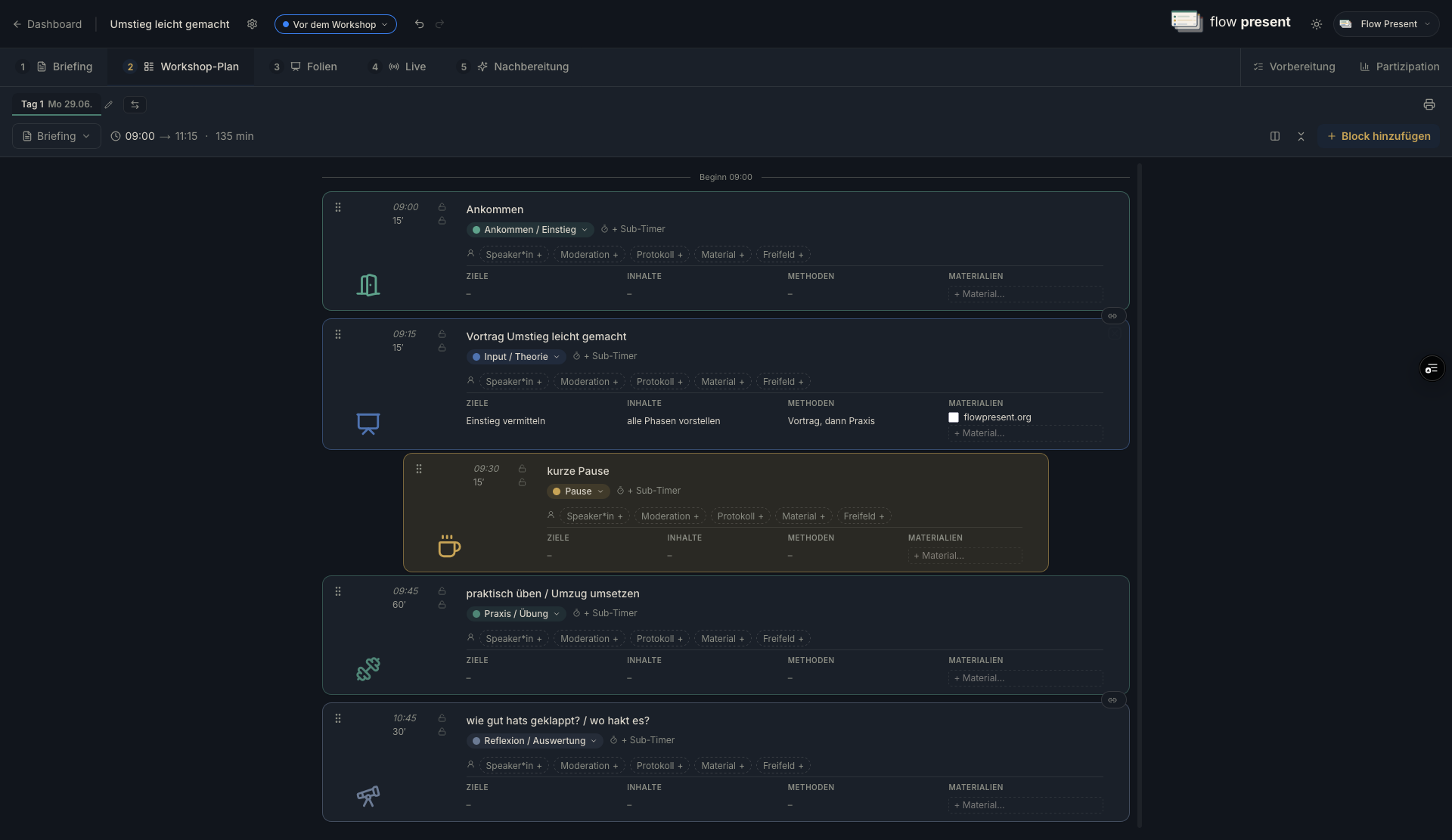
Plan blocks, methods, and times via drag & drop — on your own or with your team, always with a clear structure.
Overview
Section titled “Overview”The session plan is the timeline of your workshop, built from blocks.
Adding and editing blocks
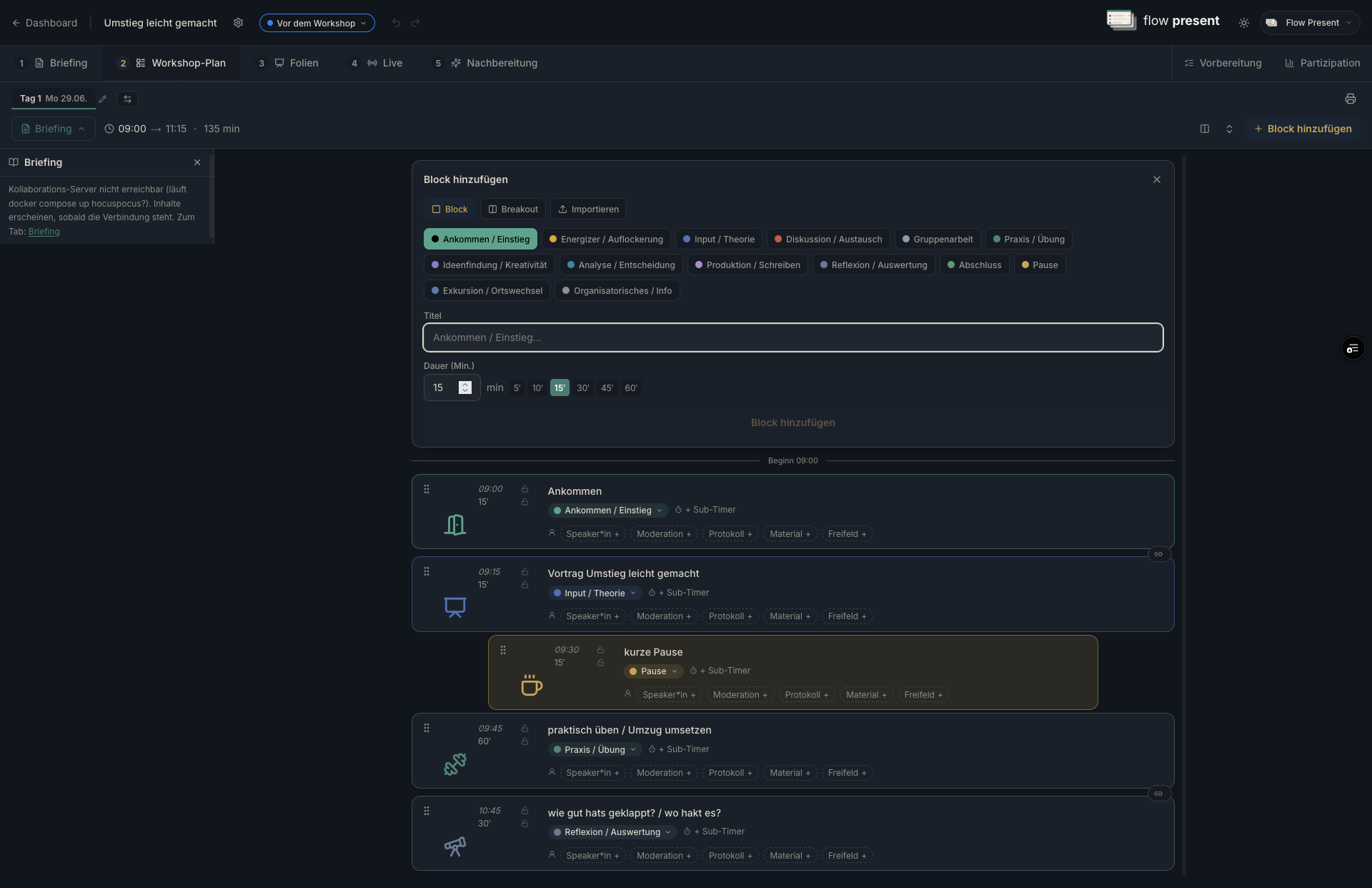
Section titled “Adding and editing blocks”- Click “Add block.”
- Fill in the start time (calculated forward automatically), duration (min.), and category.
- Show/hide optional columns: “Goals,” “Content,” “Methods,” “Materials,” “Roles.”
- Reorder via drag & drop. Per block: “Duplicate,” “Delete,” “+ Default slide.”
Tip: “Expand all” / “Collapse all” shows/hides the optional fields; with “Undo” / “Redo” (⌘Z / ⌘⇧Z) you can undo steps.
Adjusting the view & columns
Section titled “Adjusting the view & columns”You decide how much detail the plan shows:
- Show/hide and arrange the optional columns “Goals,” “Content,” “Methods,” “Materials,” and “Roles” as needed — so the plan stays clear.
- Expand all / collapse all shows or hides these fields in every block at once.
- Adjust plan width makes the plan narrower or wider — handy on small screens or when projecting.
Structure: block, chaining, breakout
Section titled “Structure: block, chaining, breakout”- Block — a single item on the program, sequential.
- Chaining (connector) — you link adjacent blocks into one connected sequence via the connector between them. This does not happen when you create them, but afterward via the connector — there is no separate “group” type anymore.
- Breakout — parallel working groups. Configuration: “Number of groups” and “Participants per group” (requires the “Expected participants” figure). Preview: “{n} parallel groups will be created.”
Breakout options
Section titled “Breakout options”- Individual breakouts (toggle): Each group maintains its own goals/content/methods/ materials — or all groups share the fields.
- Group pads writable: “breakout phase only,” “until end of Live,” or “afterward too.”
- Result slides: “Create a result slide per group” (from the org template “Group result”).
Multi-day workshops
Section titled “Multi-day workshops”- “Add day” — or use the quick access “+ 1 week” / “+ 1 month.”
- Per day: edit the date, “Start,” and “End.”
- “Delete day” removes the day (warning: the day’s blocks will be lost).
Assigning roles within a block
Section titled “Assigning roles within a block”flow present comes with default roles — typically “Speaker,” “Facilitator,” “Minutes,” and “Materials.” They are managed centrally under “Settings → Roles” (for the whole organization) and can be overridden per project.
Here’s how to assign within a block: “Assign person” — either an “org member” (dropdown) or a free-form name. “Unassigned” is the default; “Remove assignment” clears it again.
Sub-timers for small groups
Section titled “Sub-timers for small groups”With “+ Sub-timer” you add a short timer within a block (shown as “{min}′ Sub”). It is started later in Live mode.
Importing a schedule
Section titled “Importing a schedule”Existing schedules can be imported (CSV, XLSX, TXT, DOCX, PDF, e.g. a SessionLab export, or pasted text):
- Choose a file or paste text → check the preview → confirm.
- “Structure with AI” organizes unstructured text into blocks.
- Multiple days are detected and created automatically.
Carrying over briefing points
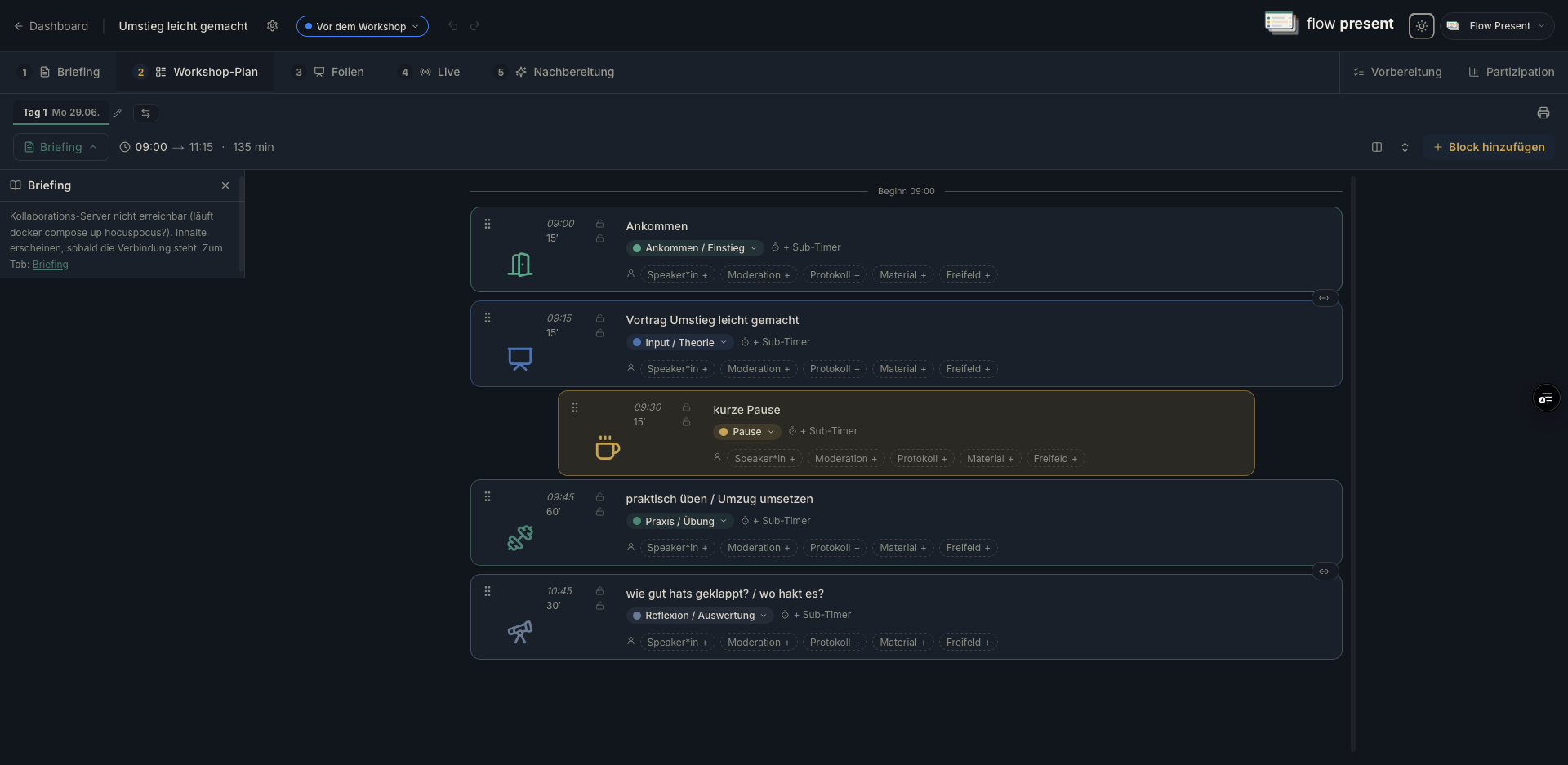
Section titled “Carrying over briefing points”With “Show briefing on the left” you drag points from the briefing into the session plan via drag & drop — what’s carried over is checked off automatically (progress “{done}/{total}”).
Notes & warnings
Section titled “Notes & warnings”- “{n} blocks still have no slide” — for categories where “Slide expected” is set.
- “More than {min} min. without a break” — the threshold comes from the org default or the project. Skimped on breaks again? From now on, flow present reminds you in good time.