Live mode
Everything at a glance in Backstage: timer, team chat, polls — participants see exactly what you show them.
Overview
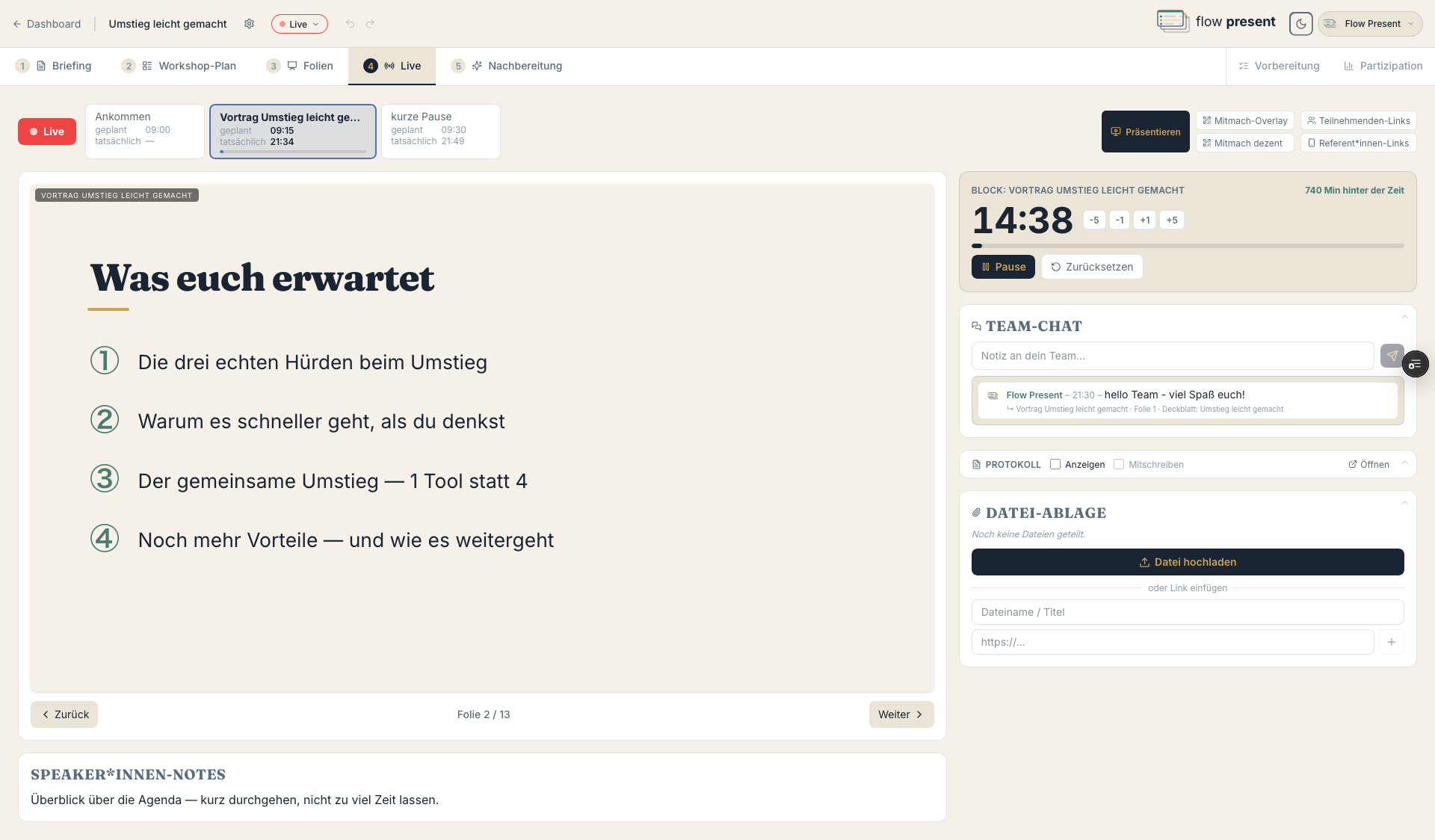
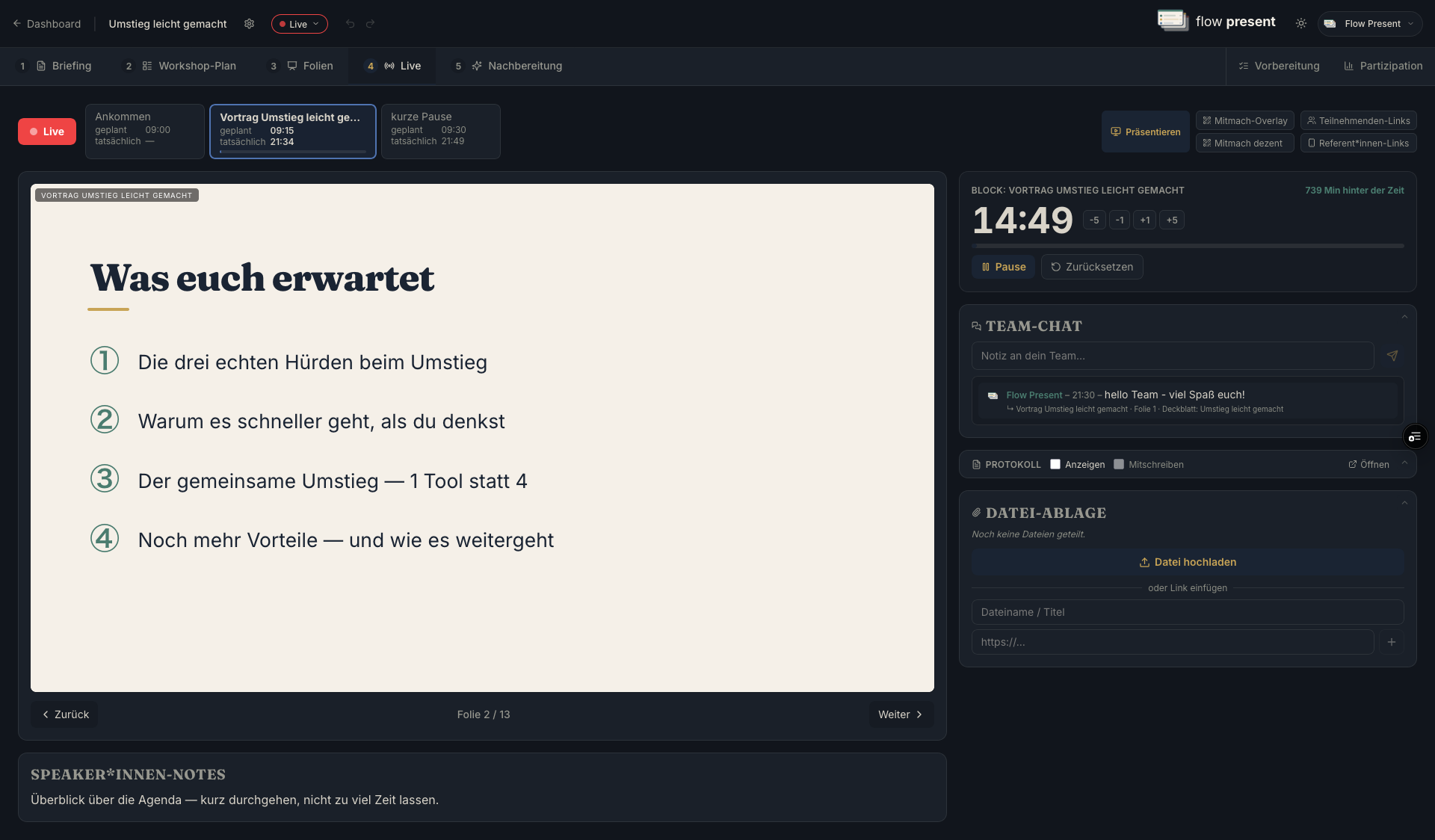
Section titled “Overview”In Live mode you run the workshop. The Backstage (facilitator view) shows the current slide, timer, notes, and controls. Participants see exactly what you release for them — slides, file area, live translation, minutes, polls: far more than just the slides.
Going live
Section titled “Going live”- Switch to the “Live” tab and click “Go live.”
- Share “Copy participation link” (or the QR code) with the group — no login required. You decide what participants see there (see “Participant view”).
- For you and your team: “Copy presenter link” — full control from your phone, no login.
Controlling slides
Section titled “Controlling slides”The most important controls in Backstage:
- ◀ ▶Back / NextPage through the slides — by click or with the arrow keys.
- 3 / 12Slide counterShows the current slide and the total — you always know where you are.
- ⧉ PresentProjector viewOpens the presentation in a new window — in sync with the current live slide.
- AaCaption over the slidesShow a caption — great for accessibility.
The block timer shows you whether you’re on schedule — with remaining time, fine adjustment, and pause/reset:
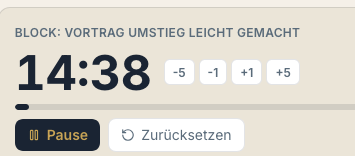
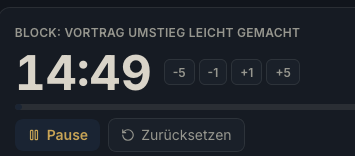
- 14:49Remaining timeCounts down the current block; “planned” vs. “actual” shows whether you’re ahead of or behind schedule.
- −5 −1 +1 +5Adjust timeQuickly add or remove minutes when the workshop runs differently than planned.
- ⏸ PauseStart / PauseStop and resume the timer — e.g. for a spontaneous break.
- ↺ ResetResetResets the block timer to the planned duration.
Sub-timer (small groups): for buzz sessions and group phases — presets, “Start” / “Pause” / “Alarm” with an advance warning and an alarm sound.
Notes & team
Section titled “Notes & team”- Speaker notes (below the slides, adjustable height): come from the editor.
- Team notes: an internal chat with timestamps for coordination — whether your team is in different locations or in the same room on their phones. Participants don’t see this. “Send” (Enter), display name from your profile.
- File storage: “Upload file” or “Insert link” for shared files.
Roles at a glance
Section titled “Roles at a glance”If you’ve assigned roles in the session plan (speaker, facilitation, minutes …), Backstage shows the current roles for each block — including “Your role.” That way the whole team always knows who’s up; no more “… wasn’t that your part?”
Participation in Live
Section titled “Participation in Live”- “Collect feedback” shows a participation overlay with a QR code (“Participation overlay” large or “Subtle prompt” small); the Live page for participants opens. Results come in live.
- Polls appear as a QR code plus results (multiple choice, word cloud, scale, free text).
Breakout / groups in Live
Section titled “Breakout / groups in Live”- Per group: a timer (start/pause/reset) and a “Group pad” (open or copy link), plus upload/link for results.
- “Choose breakout mode”: “Current groups,” “Draw small groups,” or “Draw speaker.” Run the draw with “Draw” / “Stop,” with options “Without repetition” and “Applause meter” (the microphone decides). The result can be saved as a group phase.
Live translation — a genuine standout feature
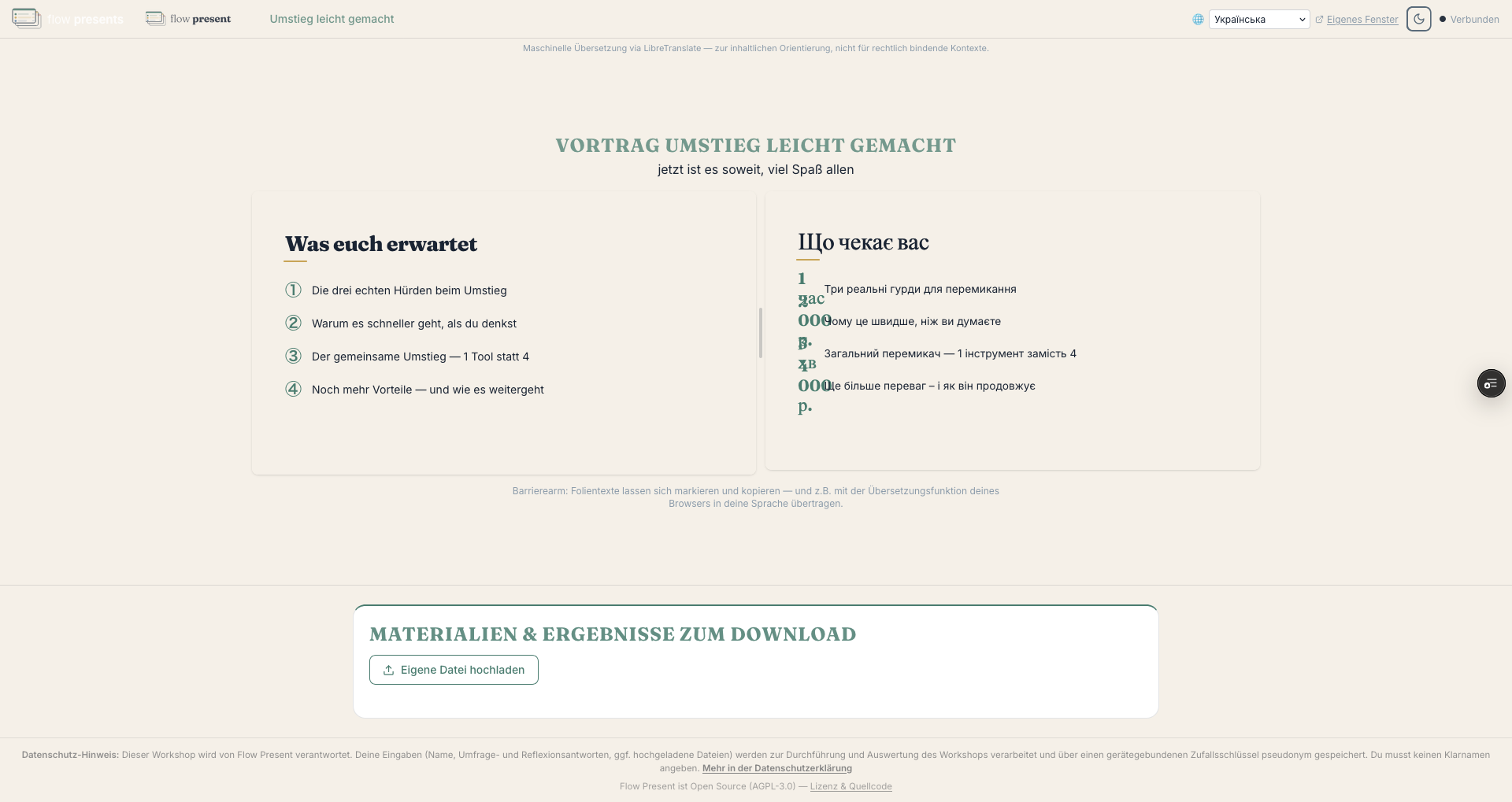
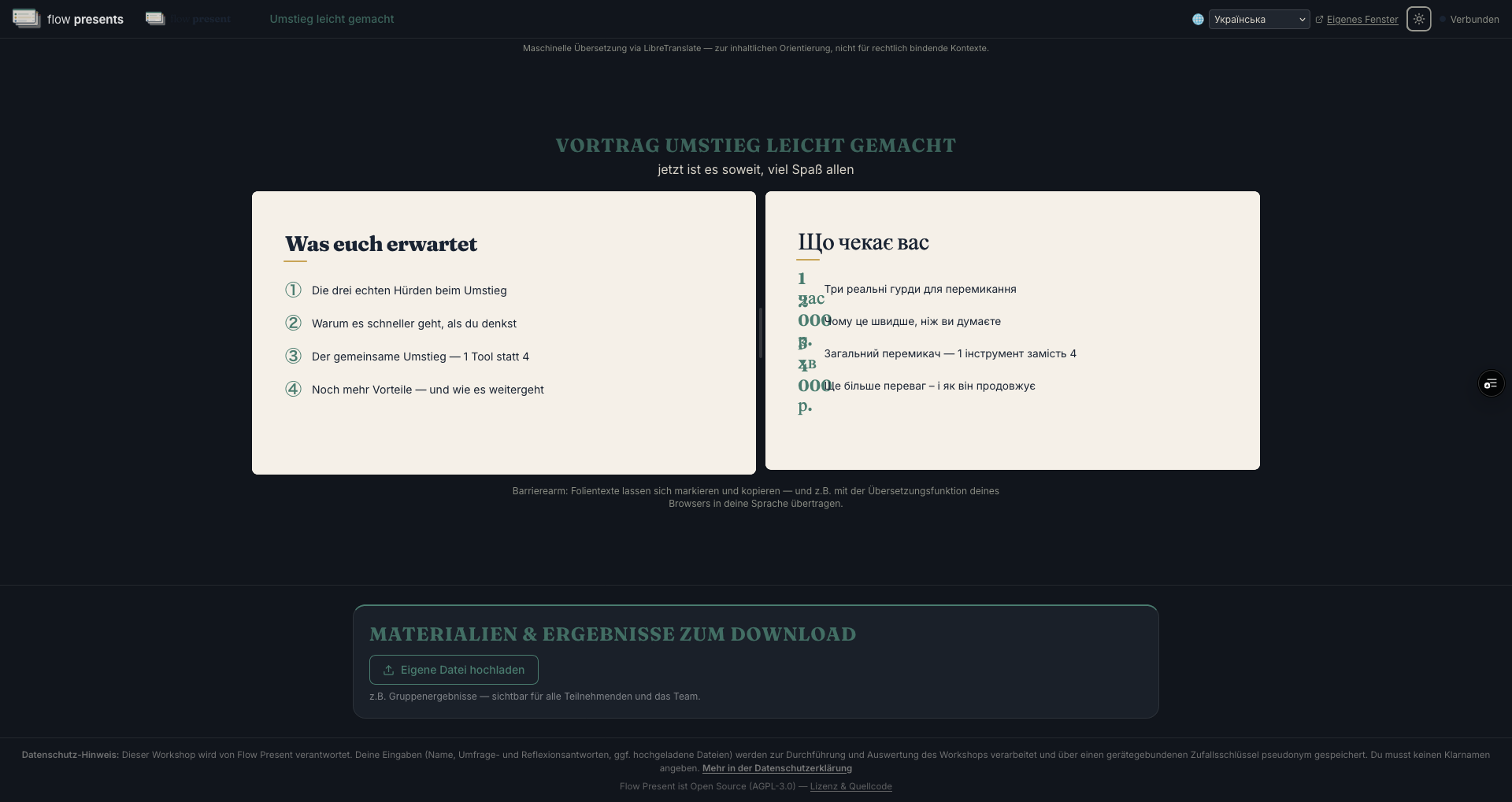
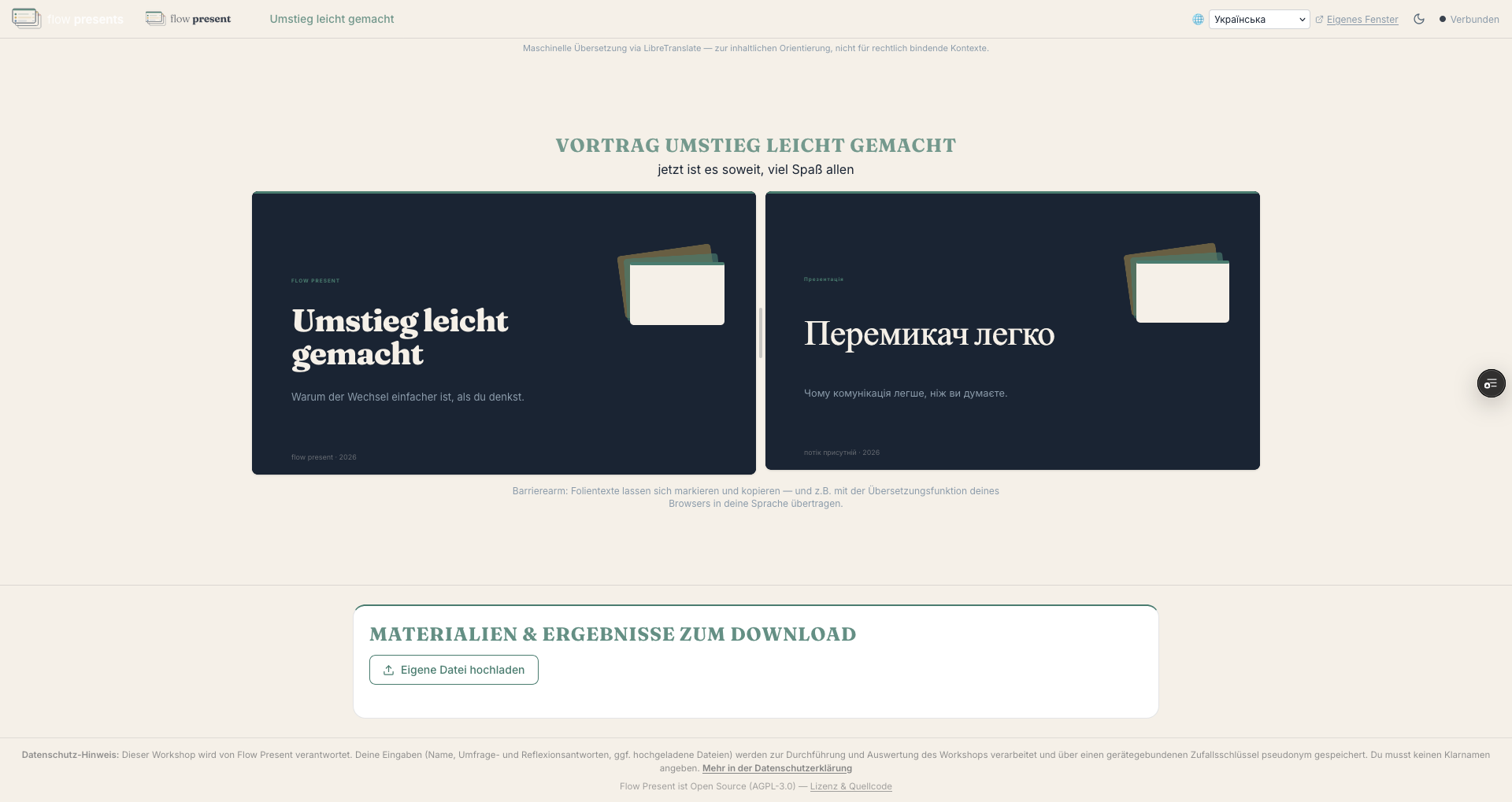
Section titled “Live translation — a genuine standout feature”A feature almost no other platform has: participants can have your slides translated live into more than 40 languages — right on their own device, each person in their own language. Inclusion with no extra effort, no interpreter booth.
Here’s how: tap “Translate slides live,” pick a language — displayed either as a split of original/translation or in its “Own window” (e.g. a second projector).
Show all currently supported languages
Arabic · Azerbaijani · Bengali · Bulgarian · Catalan · Chinese · Czech · Danish · Dutch · English · Esperanto · Estonian · Finnish · French · German · Greek · Hebrew · Hindi · Hungarian · Indonesian · Irish · Italian · Japanese · Korean · Latvian · Lithuanian · Malay · Norwegian · Persian · Polish · Portuguese · Romanian · Russian · Slovak · Slovenian · Spanish · Swedish · Tagalog · Thai · Turkish · Ukrainian · Urdu · Vietnamese
The exact range of languages depends on the installed translation models.
The text on the slides is translated (not graphics or videos — videos can have subtitles if needed). A small note: this is machine translation, meant for orientation — not legally binding.
Minutes
Section titled “Minutes”You now set up the minutes under Preparation → “Right before the workshop” — but you can still open and share them directly from Live mode.
“Open minutes in a new tab”; options “Show to participants” and “Let participants write.” “Copy minutes link” shares it (only during Live).
Participant view
Section titled “Participant view”Participants see the current slide live (after the workshop, possibly all of them to page through). Depending on your settings, also: slide PDF, live translation, minutes, file area, upload, polls, and the current agenda item. Welcome messages for each phase (before/during/after).