Slides
Design your own slides for each block, add interactions, and stay in sync with your team.
Overview
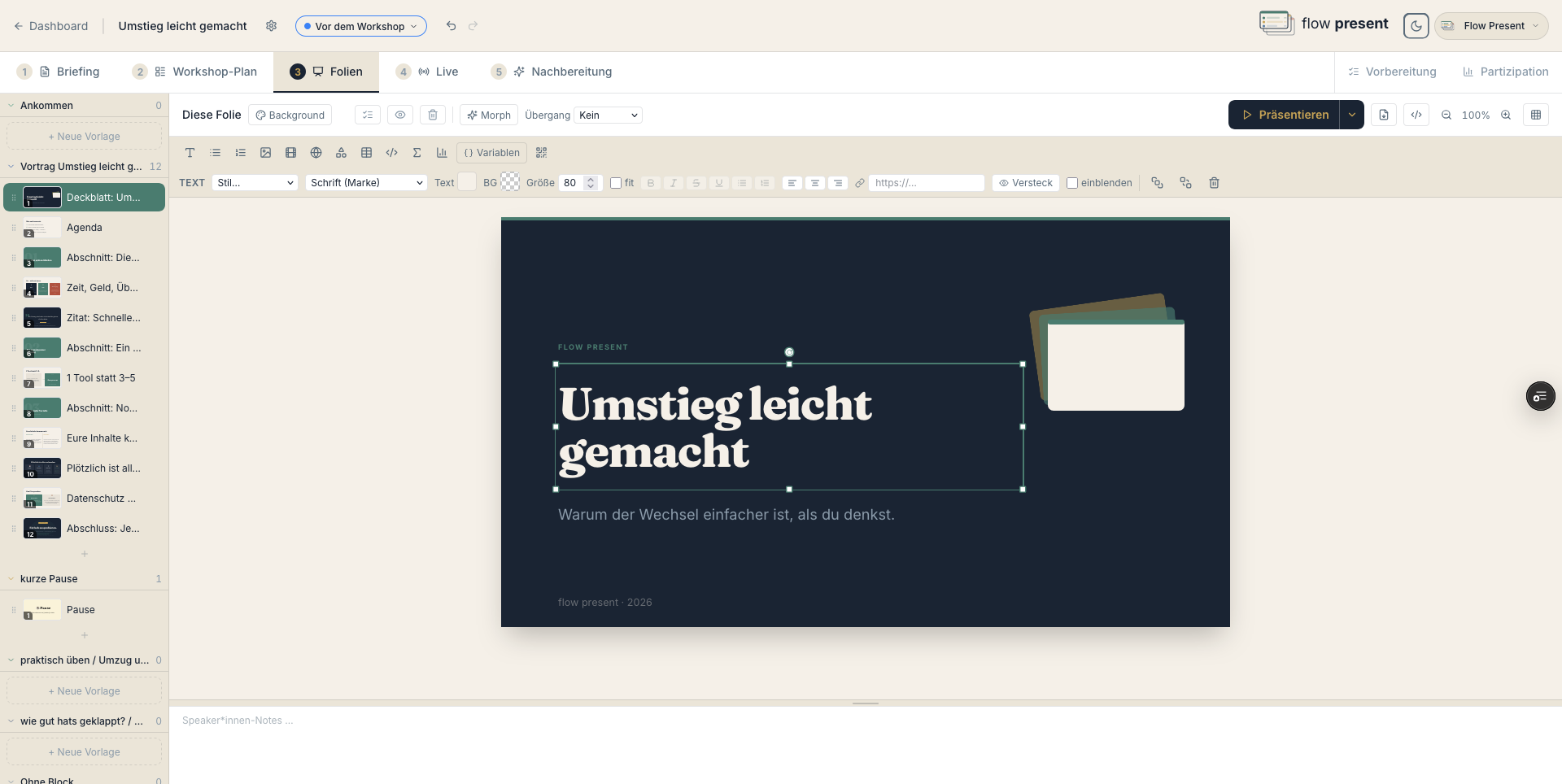
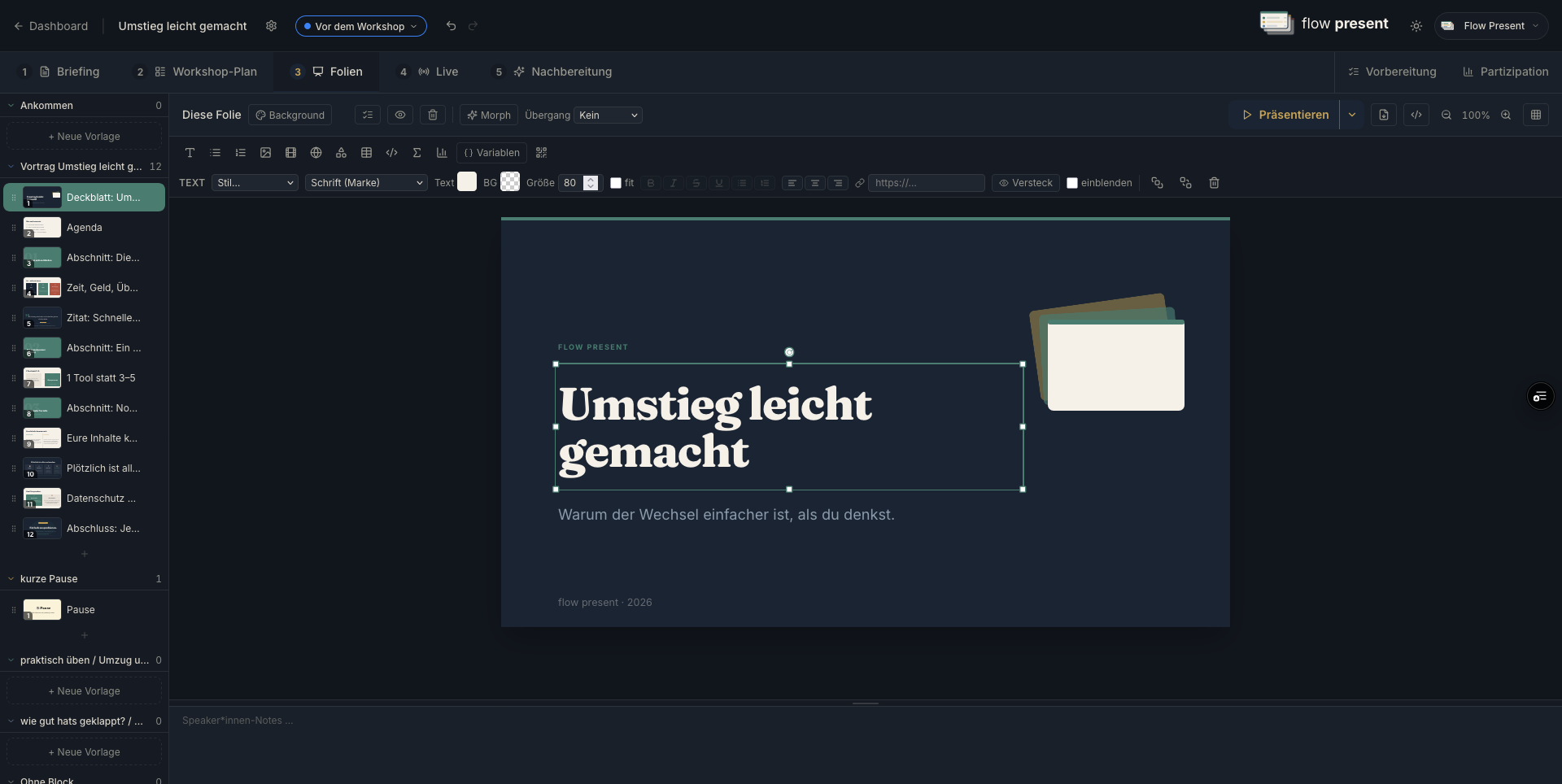
Section titled “Overview”The Slides tab contains the slide library (thumbnails, filterable by block/day) and the canvas editor.
Managing slides
Section titled “Managing slides”- “Add slide” (or “+ Default slide” right in the session plan).
- Per slide: “Duplicate slide,” “Hide slide” (skipped in the presentation, kept in the editor), delete (with ⌘Z undo).
- Badges: “Slide hidden …,” “Morph (Auto-Animate) active.”
Designing in the canvas editor
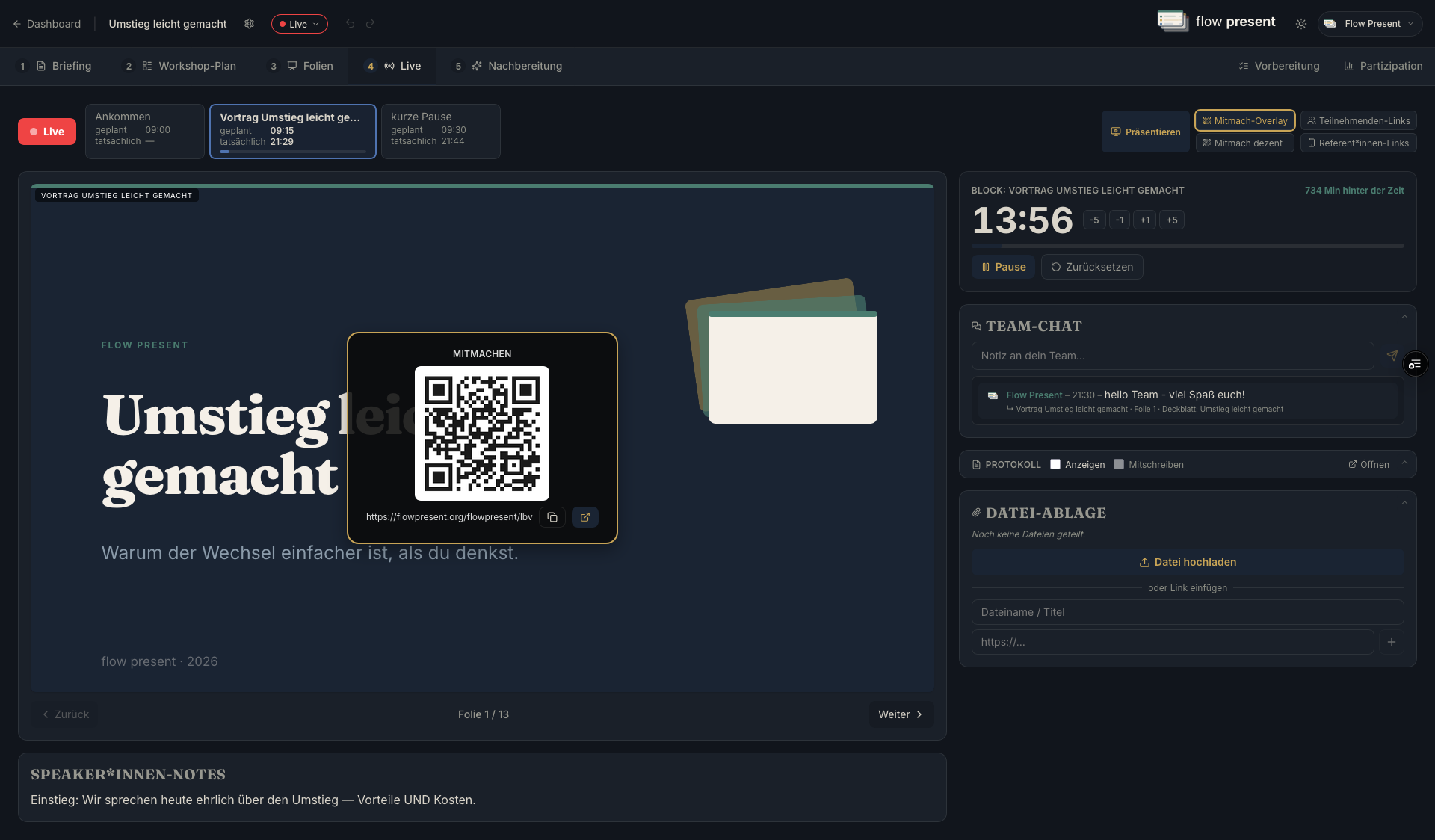
Section titled “Designing in the canvas editor”Insert elements: “Text,” “Bulleted list,” “Numbered list,” “Image,” “Video,” “Iframe,” “Shapes” (rectangle/triangle/circle/arrow/line), “Table,” “Code,” “Formula” (LaTeX), “Chart” (bar/line/pie/doughnut), and “Insert participation link + QR code.”
Formatting text
Section titled “Formatting text”After double-clicking into a text: “Bold,” “Italic,” “Underline,” “Strikethrough,” alignment left/center/right. Via the style dropdown you choose the org styles (“Heading 1–4,” “Text”).
Background, transition, morph
Section titled “Background, transition, morph”- “BG”: background color (brand or custom), full-screen image/video.
- “Transition”: None / Fade / Slide / Zoom / Convex / Concave.
- Morph (Auto-Animate): a smooth animation to the next slide — duplicate the slide, then rearrange elements.
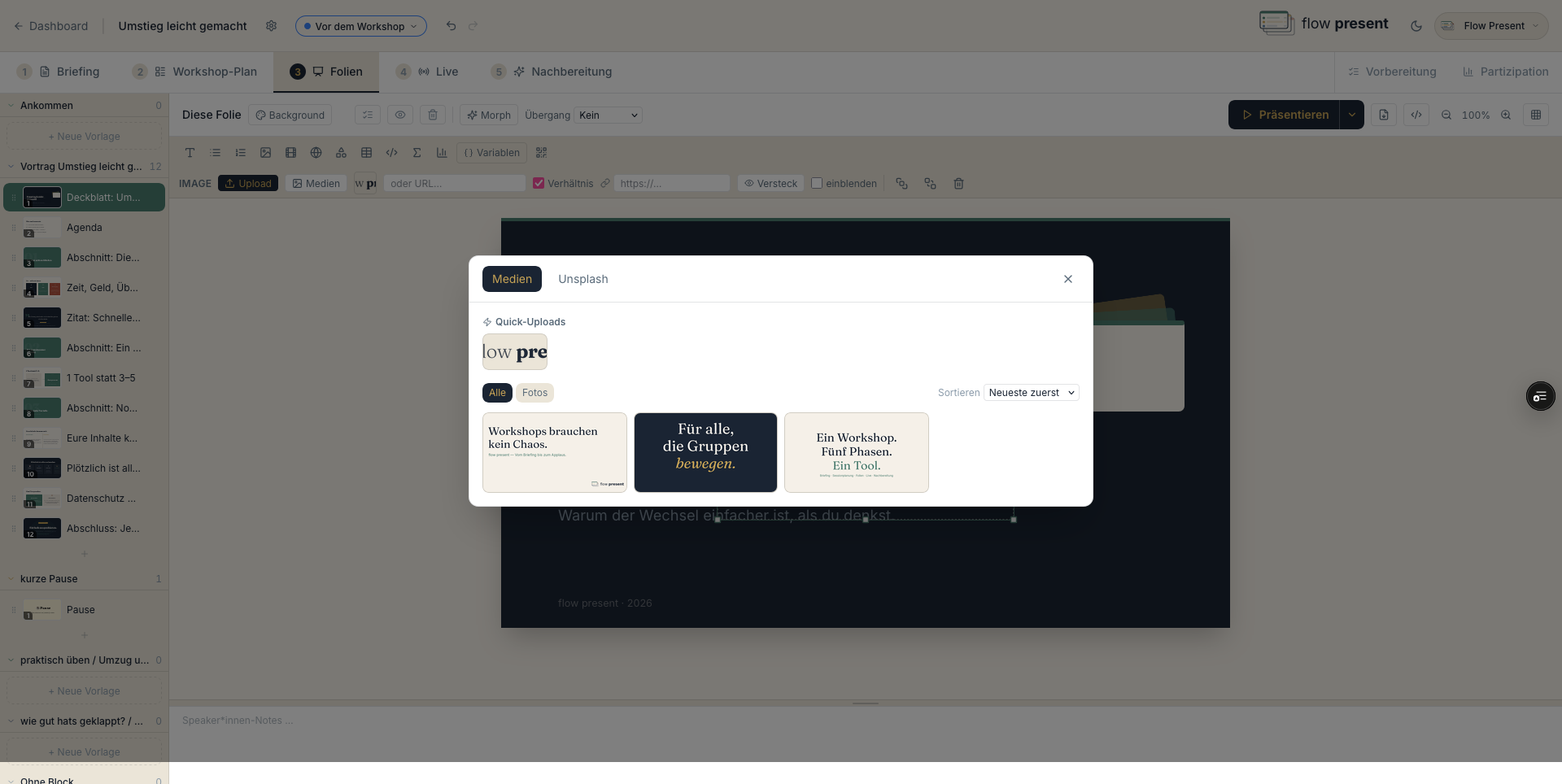
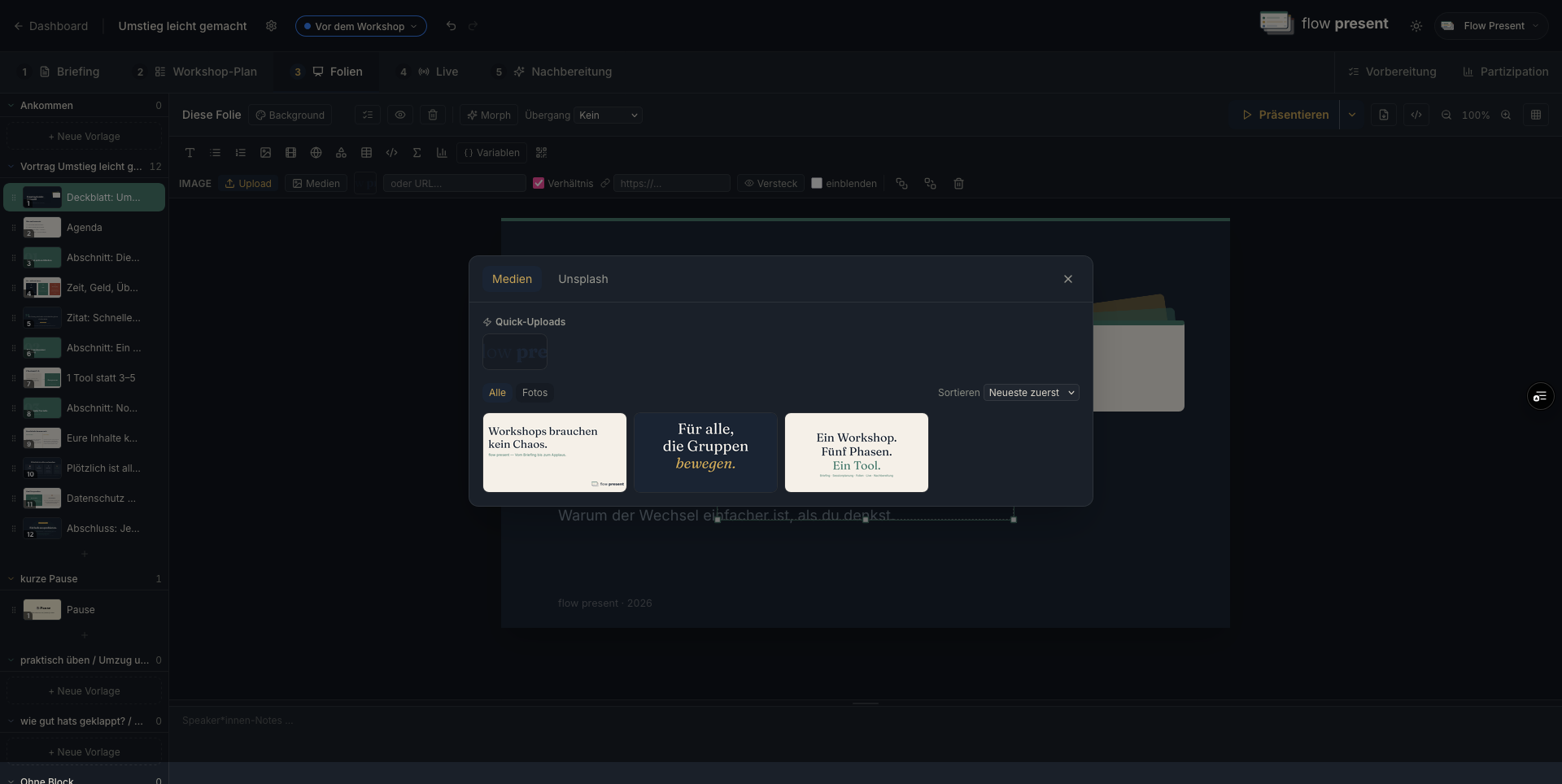
The “Media” picker (org media or Unsplash search), “Quick uploads,” “Upload file.” Videos with “Autoplay,” “Loop,” “Slide start,” “Lazy,” and visible “Controls.”
Interactive elements
Section titled “Interactive elements”- Link (“Link”): a click in the presentation/Live opens the address.
- Reveal: hidden content (image/video/audio/text) that appears large on click.
- Fragment (“reveal”): step-by-step reveal with an effect (fade, directions, zoom, grow).
Variables / placeholders
Section titled “Variables / placeholders”“Variables” creates placeholders you can adjust at any time in Live mode (for example
{{name}}). Automatic variables: time (Live time + offset) and location (with a fallback).
Arranging elements
Section titled “Arranging elements”Multiple selection (Shift-click/drag-select), “Group” / “Ungroup,” “Bring to front” / “Send to back,” “Delete selection.” Aids: a grid (density fine/medium/coarse, magnetic snap) and a “Lock zone” (for example for a webcam overlay, invisible in the presentation).
Embedding live websites (iframe)
Section titled “Embedding live websites (iframe)”Importing slides
Section titled “Importing slides”Import from PPTX, PDF, ODP, ODT, TXT, ZIP (reveal.js), or HTML:
- Choose a file, mode “Editable (recommended)” or “As image (faithful to the original)” (PDF only).
- Optionally assign it to a block (or “— No block —”).
- Check the preview and import. Notes may appear depending on the file type.
Preview, Present, PDF
Section titled “Preview, Present, PDF”- “In-tab preview” next to the editor, or “New window” (projector view, in sync with the Live slide).
- Present options: scope (“This day only” / “All days”), starting point, “Keep Live sync active.”
- “Export as PDF” via the print dialog.